![Untitled design (2)-3.png]](https://support.helloalleva.com/hs-fs/hubfs/Untitled%20design%20(2)-3.png?height=50&name=Untitled%20design%20(2)-3.png)
- Accepted file types: .835, .txt, and .edi.
- Upload limit: One file at a time, up to 10 MB.
- Processing time: Files larger than 1 MB can take up to a minute to process.
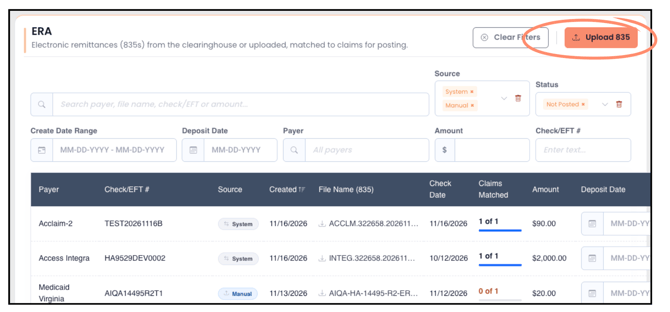
- Go to Payment Management > ERA.
- Click Upload 835 in the upper right corner.
- Drag the file into the window, or click Browse and select it.
- Review the remittance details Alleva displays: payer, trace number (check or EFT), payer ID, amount, check or EFT date, and number of claims.
- Optionally, enter a Deposit Date.
- Click Upload.
A message confirms how many ERAs were added. The new rows appear at the top of the list with the source Manual, your name and the upload date, and the status Not Posted.
After uploading the 835 form, click Add Payment to post as you would any other ERA. Learn more about posting payments here>
How the duplicate check works
If a remittance in the file was already uploaded and posted, Alleva blocks the upload. The message shows the trace number, payer, amount, and original upload date, along with an Open posted ERA link.
- One duplicate blocks the whole file. If any remittance in a multi-remittance file is a duplicate, nothing from the file is saved.
- Check numbers are evaluated by payer. The same check number from a different payer is not treated as a duplicate.
- Unreadable files are rejected. If the file is not a readable 835, nothing is saved.
- Failed uploads do not save partial results. If an upload fails partway through, nothing from the file is saved. Try the upload again.
There is no override for a blocked duplicate. If you think the block is incorrect, contact Support.
Work the ERA list
| Column or control | What it does |
|---|---|
| File name | Downloads the original 835 file. |
| Source | Shows System for ERAs received from the clearinghouse or Manual for uploaded ERAs, including who uploaded them and when. Source is also available as a filter. |
| Claims Matched | Shows “X of Y” claims matched, with a colored bar indicating whether all, some, or none matched. |
| Status | Shows Not Posted, Posted with the posted date, or Deleted with who deleted it and when. The list shows Not Posted by default. |
| Row button | Shows Add Payment, Review Payment, or View Posting, based on where the ERA is in the process. |
Posted rows have a light blue background. Deleted rows are grayed out and are for reference only. An ERA without a payer name displays “Payer not identified.”
Preview matched claims
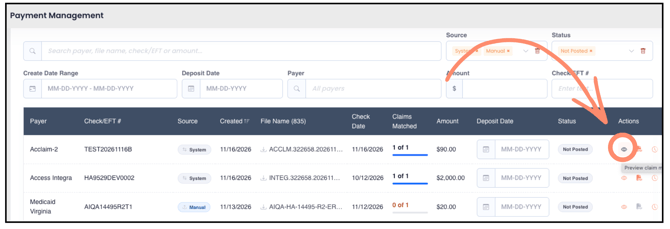
- Click the eye icon on an ERA row.
- Review the side panel for the claims in the file, how many matched and their total paid, and which claims did not match and why.
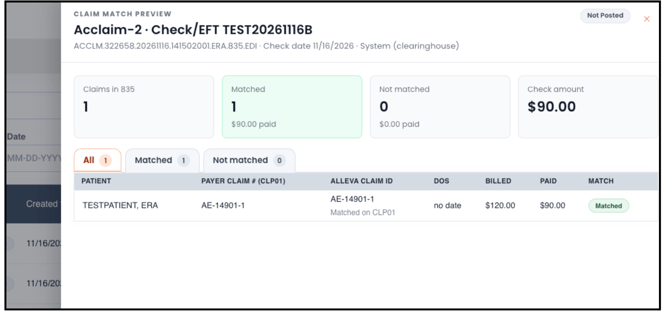
- If some claims did not match, fix them first or post them as External Payments.
The preview does not change anything or start posting. The panel includes a link to download the file and the same posting button shown on the row.
View ERA History
- Click the clock icon on any ERA row, including posted and deleted ERAs.
- Review the events, listed newest first, with who performed each action and when.
- Use the tabs to filter by Status, Field changes, Payment activity, or Received / uploaded.
ERA History includes these events:
- ERA received or uploaded.
- Deposit date set or changed.
- Payment created.
- Payment saved, including the old and new total posted.
- ERA posted or deleted.
Add a reason when deleting
When you delete an ERA or its payment, the delete window includes an optional Reason box. If you enter a reason, it appears in ERA History.
Things to know
- ERA History cannot be edited or deleted. Deleting an ERA keeps its history.
- Older ERAs may have limited history. ERAs received before the release show only the history that could be rebuilt from existing records.
- Line-by-line posting edits are not listed. ERA History records that the payment was saved and the change in total posted, rather than individual edits in the payment posting screen.