![Untitled design (2)-3.png]](https://support.helloalleva.com/hs-fs/hubfs/Untitled%20design%20(2)-3.png?height=50&name=Untitled%20design%20(2)-3.png)
Unlock a payment
When you cannot unlock a payment
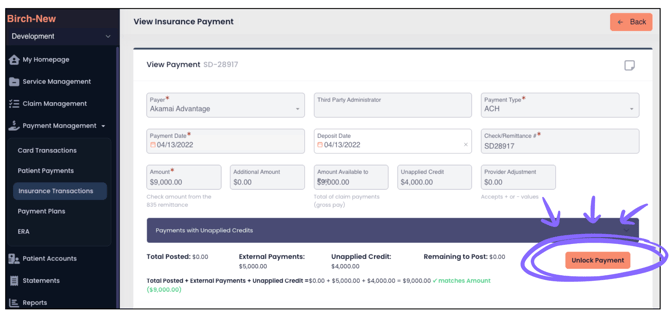
- Go to Payment Management > Insurance Payments and open the posted payment.
- Click Unlock Payment.
- In the window that opens, enter the reason for unlocking the payment. A reason is required.
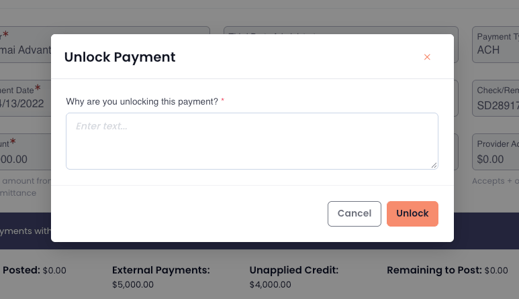
- Click Unlock.
The fields you can edit depend on the payment type.
| Payment type | Editable fields | Read-only fields |
|---|---|---|
| ERA payment | Adjustment amounts, group codes, reason codes, co-pay, deductible, coinsurance, client responsibility, provider adjustments, and external payments | Payment amount, check information, and payer |
| Manual insurance payment | All fields, including payment amount | None |
If the claim balance was transferred, you can also change the next-payer routing fields, for example, to send the balance to Self Pay.
Post the corrected payment- Review your changes.
- Save and post the payment.
Alleva recalculates claim and service line balances, client and insurance responsibility, and adjustment totals. The claim status updates to Closed, Transferred, or Hold based on the new amounts.
To discard your changes, cancel the correction. The payment returns to exactly how it was before you unlocked it.
When you cannot unlock a payment
| Situation | Message you see |
|---|---|
| A newer payment was posted on the same claim. | “Only the most recently posted payment can be unlocked.” |
| The remaining balance was transferred to another payer, and that claim is still active. | “This payment cannot be unlocked because the remaining balance has already been transferred to another payer.” |
| The claim was voided. | “Payments cannot be unlocked for a voided claim.” |
The transfer restriction does not apply when the balance was transferred to Self Pay, or when every claim created by the transfer has been voided.
Things to know- Only one person can correct a payment at a time. Others see “Being corrected by” with that person’s name, and the payment is read-only for them.
- Inactive corrections are cancelled after 5 minutes. After 4 minutes without activity, a “Still working on this correction?” message appears with a one-minute countdown. Click Keep working to continue. At 5 minutes, the correction is cancelled, unsaved changes are discarded, and the payment locks again.
- Closing the browser or signing out locks the payment again.
- Freed-up unapplied credit is held during the correction. If a correction frees up unapplied credit, that credit is held until you post or cancel so another payment cannot use it.
- Changes are recorded. Every unlock, edit, and re-post is recorded with the user, time, old and new values, and the reason.
- Deposit Date does not require an unlock. You can edit the Deposit Date on a posted ERA without unlocking the payment.