![Untitled design (2)-3.png]](https://support.helloalleva.com/hs-fs/hubfs/Untitled%20design%20(2)-3.png?height=50&name=Untitled%20design%20(2)-3.png)
Benefits of Using Staff Availability
-
Reduces scheduling conflicts by clearly showing when staff are available.
-
Improves team communication by making availability visible to schedulers.
-
Ensures proper coverage by helping assign the right staff at the right time.
Viewing Staff Availability in the Scheduler
-
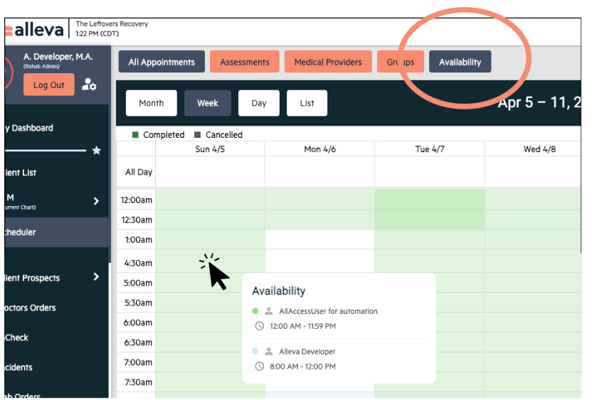
Go to the Scheduler.
-
Select the Availability filter at the top of the screen.
-
Hover over a time slot.
-
A list will appear showing which staff members are available during that time
Setting Up Availability Settings (System Settings – Scheduler Settings)
-
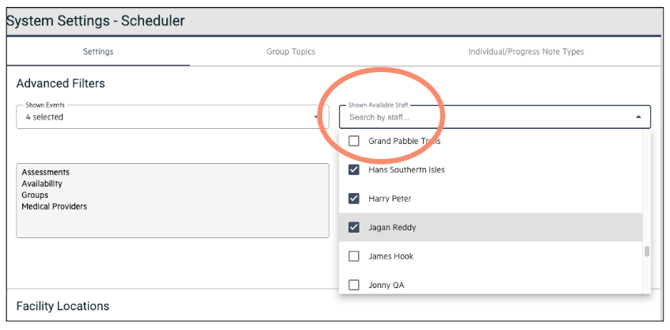
Navigate to System Settings > Scheduler Settings.
-
Click the Edit (pencil icon) in the upper right corner.
-
Use the "Shown Available Staff" dropdown menu to:
-
Select staff to include in the availability filter.
-
Deselect staff to remove them from the filter.
-
-
Save your changes.
Setting Up Staff Availability (Admins - Company Settings – User Management)
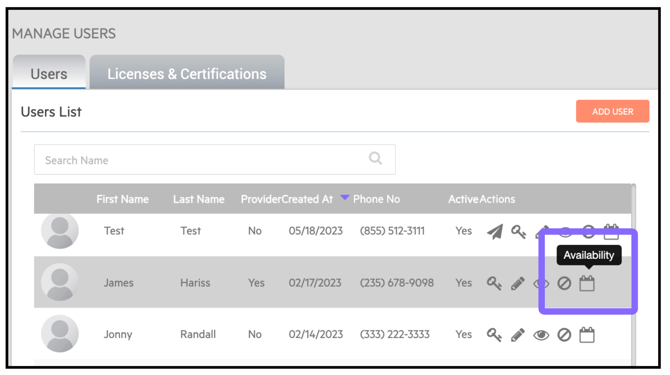
- Admins can navigate to Company Settings > User Management and click the appointment icon to edit another staff member's availability.
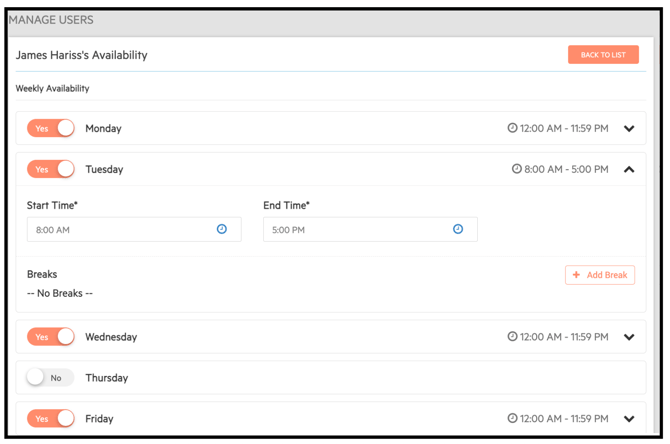
- From there, edit the staff's availability including setting which days are worked, working hours, and any breaks during the day.
Setting Your Own Availability (Staff – Profile Settings)
-
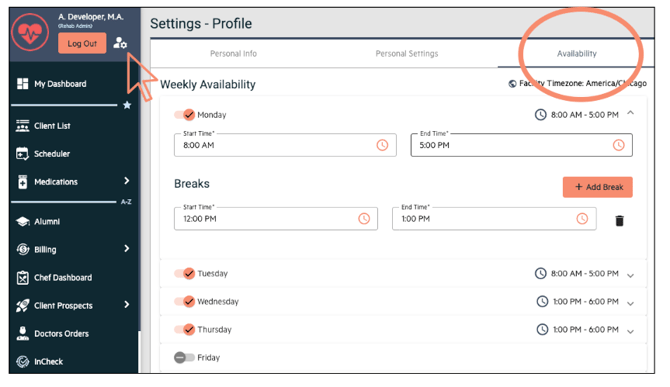
Go to My Profile and Settings (upper left corner).
-
Select the Availability tab.
-
For each day of the week:
-
Toggle the day on or off.
-
Set your available working hours.
-
Add breaks if needed.
-
-
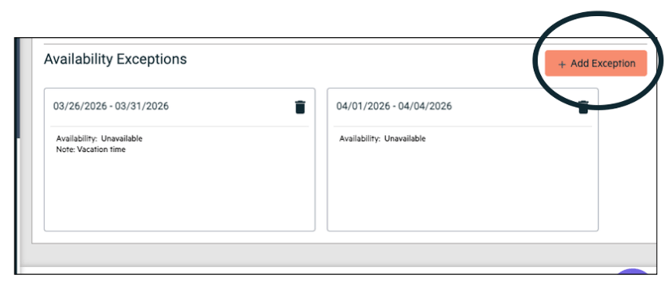
Scroll down to Exceptions:
-
Add time off (out of office).
-
Or mark times as available outside your usual schedule.
-
-
Save your updates.