![Untitled design (2)-3.png]](https://support.helloalleva.com/hs-fs/hubfs/Untitled%20design%20(2)-3.png?height=50&name=Untitled%20design%20(2)-3.png)
Jump to:
Submitting a Claim - How to submit encounters/services to our clearinghouse partner, Waystar:
1. Once services are provided and submitted from the Encounter Transmission Table to Alleva Billing, they will be available in the Service Management tab. Check the Service Management tab to find the encounters you're submitting.
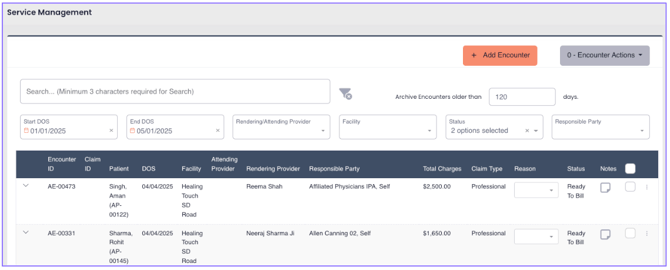
2. Click on the encounter to review all details and make any edits to claim fields, service fields, or client information that are necessary before submitting.
3. Select "Submit" at the top of the edit screen, or back on the Service Management list view select multiple encounters and click Actions > Submit.
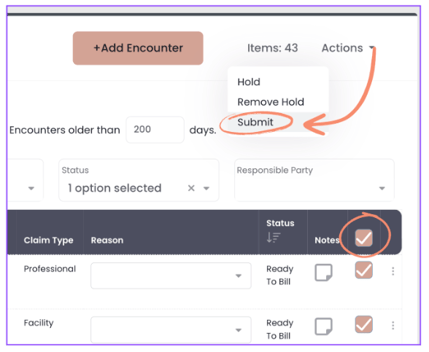
4. A claim will be automatically generated and sent to Waystar for further processing. The claim will be accessible in the "Claim Management" tab with the status "Submitted".
How to edit claim details before or after submitting it (for re-submittal):
Alleva Billing now includes a full claim editor for both Professional (CMS-1500) and Facility (UB-04) claims, available from both Service Management and Claim Management.
- From Service Management, click on an encounter to open the full claim editor. From Claim Management, click into any claim (submitted, rejected, or in progress) to open the same editor. Both surfaces use the identical layout, so the experience stays consistent whether you're editing pre-submission or fixing a rejection.
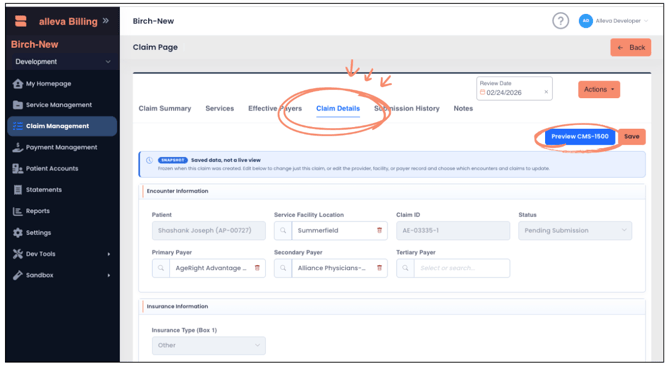
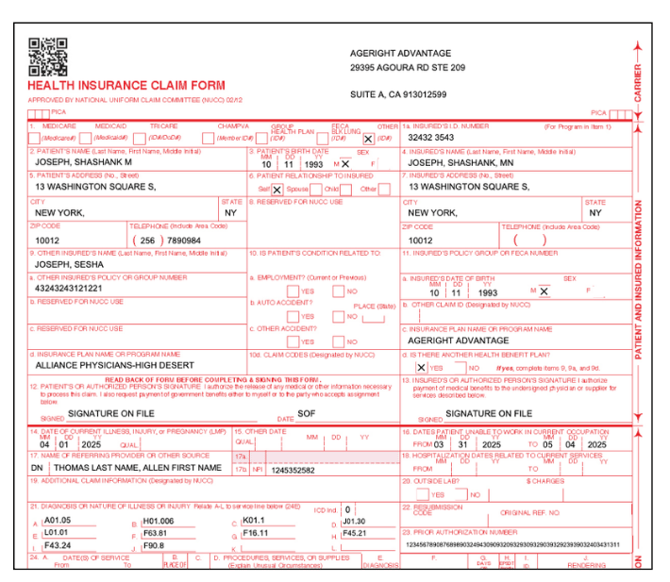
- Click "Claim Details" to access the editor worksheet. The editor presents the complete CMS-1500 or UB-04 form layout, organized into sections (header, subscriber/patient info, diagnosis codes, providers, service lines) with each field labeled by its field locator (FL) so it's easy to match what you're editing to the printed form.
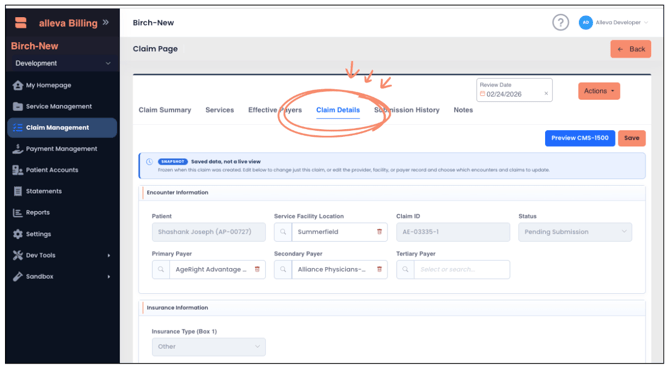
- If a claim references billing details that were set at the time it was created (like billing provider tax ID or address), you'll see a notice indicating those values are a saved snapshot rather than a live view. This is expected: claims freeze this identity information at creation, so if the underlying provider or facility record changes afterward, the claim keeps showing what was captured when it was made. Edits to a specific claim are still made directly on that claim's worksheet.
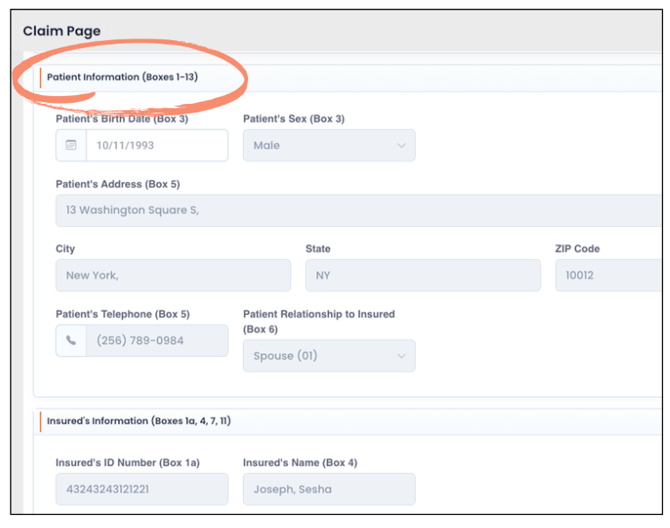
- Use the claim preview button at any point to generate a CMS-1500 or UB-04 PDF reflecting your current edits, so you can confirm everything before submitting.
- Claims with validation errors are flagged with an indicator in the claim list grid. You won't be able to submit a flagged claim to the clearinghouse until the errors are cleared. Click the indicator to expand the details and see exactly which fields need attention.
- Every field change is tracked in the claim's history log, including who made the edit, when, and the before/after value. You can review this from the claim's history to see the full record of what changed across versions, including any corrections made after a rejection or denial.
- Once your edits are ready, select "Save" from the editor, then go back to the list view of claims/services. Select the claim there, go up to actions, and select "submit" to submit (or resubmit) the claim when ready. Alternatively, select multiple claims from the list view and use Actions > Submit. The claim (or corrected version) is generated and sent to Waystar for processing.
If a Claim is Rejected:
The claim status will provide some indication for why the claim was rejected. For instance, if it says "Claim Rejected by First Edits", this means that Waystar rejected the claim based on preliminary information like your facility's NPI being invalid, for example. In order to get more insight into the reason for the rejection, click on the claim and navigate to "Submission History."
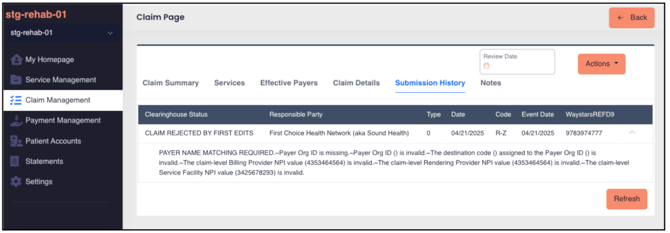
In Submission History, click the dropdown for the recent submission and you will see a list of fields that were either missing or invalid. To edit claim fields, go to the "Claim Details" tab and follow the steps above.
In "Submission History", you can view the new submission record and all previous submissions for the claim.
Generating a Secondary or Tertiary Claim
If a patient has more than one insurance on file, the claim editor can generate the next claim in the payer sequence once the prior payer has responded.
- When the primary payer's payment is posted, record how much they paid and distribute it across the claim's charges. Set the Next Responsible Party to Transfer. This is what triggers claim generation.
- Once posted, the primary claim moves to a Transferred status, and a secondary claim is automatically created with the same Claim ID plus a "-02" suffix. It appears in Claim Management with the status Pending Submission and does not go out to Waystar automatically.
- Open the secondary claim in the full claim editor to review or make any edits. Coordination of benefits (COB) fields, including the primary payer's paid amount and adjustments, carry forward automatically at the claim level, and at the service line level too if the secondary payer requires that detail.
- Use the claim preview button to confirm the CMS-1500 or UB-04 reflects the correct information, then select "Submit" to send it to Waystar.
- To generate a tertiary claim, repeat the same process: post the secondary payer's payment, distribute it to charges, and set the Next Responsible Party to Transfer again. This creates the tertiary claim (Claim ID with a "-03" suffix), which follows the same review and submission steps.
NOTE: If a balance remains after the last payer in the sequence, set the Next Responsible Party to Patient instead of Transfer. The outstanding balance moves to patient responsibility.