![Untitled design (2)-3.png]](https://support.helloalleva.com/hs-fs/hubfs/Untitled%20design%20(2)-3.png?height=50&name=Untitled%20design%20(2)-3.png)
Benefits of Scheduling Treatment Plan Reviews
-
Keeps reviews organized and visible on the scheduler.
-
Ensures timely completion with task reminders.
-
Supports both detailed and quick review workflows.
How to Schedule a Treatment Plan Review
-
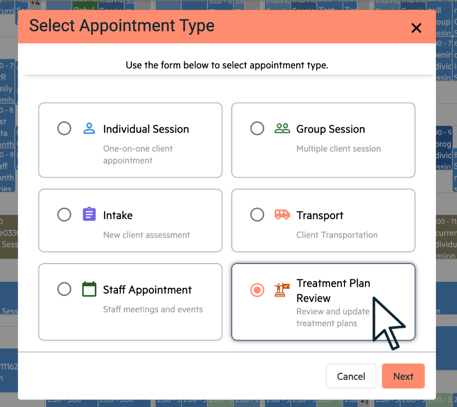
Go to the Scheduler and click a date/time.
-
Select Treatment Plan Review.
-
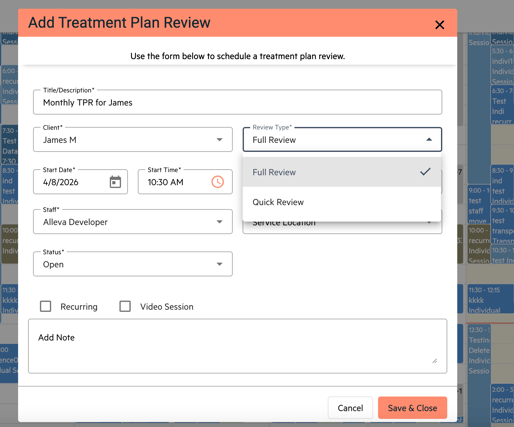
Enter required details, including Review Type:
-
Full Review: Includes full clinical details, diagnoses, and built-in forms.
-
Quick Review: Focuses just on goals and objectives status updates.
-
-
(Optional) Set the review as recurring:
-
Choose weekly or monthly frequency.
-
Select timing and end date.
-
-
(Optional) Enable as a telehealth session to generate a video link. The link will email to the client and staff can launch the telehealth session from the scheduler.
-
Click Save and Close.
How to Access and Start a Review
-
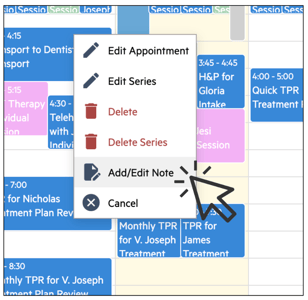
Find the TPR on the scheduler and click it. Alternatively, launch the TPR from the "My Tasks" list on the dashboard. The TPR will flow to the tasks list of the staff member assigned to it on or after the date that it is scheduled for.
-
Select Add/Edit Note to begin (if started via the scheduler).
Completing a Full Review
-
Includes client demographics, diagnoses, and full treatment plan details.
-
Update goal and objective statuses (complete, extend, cancel).
-
Add notes and complete required sections.
-
Assign reviewers if needed.
-
Save and sign when finished.
Completing a Quick Review
-
Focuses only on the treatment plan and any custom forms added via System Settings > TPR.
-
Update statuses and add notes.
-
Assign reviewers if needed.
-
Save and sign to complete.
Managing Treatment Plan Reviews
-
Edit a single review with Edit Appointment.
-
Edit recurring reviews with Edit Series.
-
Delete individual or recurring reviews as needed.
-
Completed reviews are saved to the client chart and removed from My Tasks.
Tips
-
Use recurring reviews to stay compliant with deadlines.
-
Choose Quick Review for faster updates.
-
Assign reviewers to support approval workflows.