![Untitled design (2)-3.png]](https://support.helloalleva.com/hs-fs/hubfs/Untitled%20design%20(2)-3.png?height=50&name=Untitled%20design%20(2)-3.png)
Utilization Review (UR) is a new feature in Alleva InCheck that helps streamline the process of completing UR forms for clients. Like AI Chart Audits, this feature uses AI to scan a client's chart and pre-fill the UR form based on their treatment information. Reviewers then verify the AI's answers before submitting the form.
At a high level, a UR is a customizable form that gets completed and used to support a request for continued or updated authorization from an insurance company. This feature automates the creation of those forms and uses AI to help fill them out.
Accessing Utilization Review
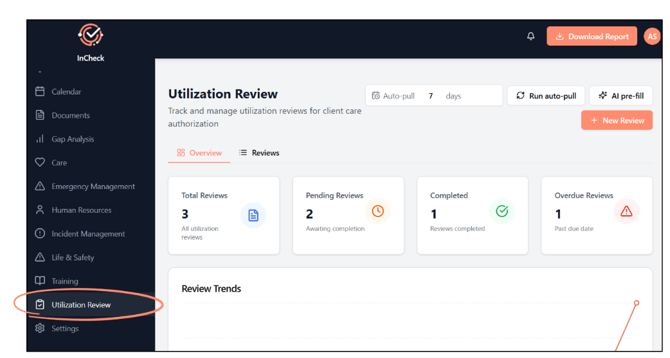
- In InCheck, go to the Utilization Review tab.
- From here, you can create a new UR manually or view existing reviews under the Reviews tab.
Creating a UR Manually
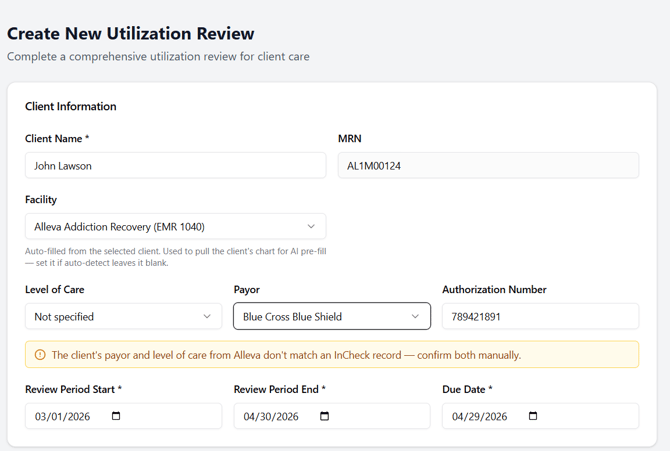
- Click New Review and start typing the client's name. Select the client from the dropdown.
- Once you select a client, the form will automatically pre-fill:
- Level of care
- MRN
- Authorization number (pulled from their last authorization in the EMR)
- Authorization due date
- Payer (insurance company)
- Select the review type (for example, continued stay or initial review).
- Set the priority.
- Click Create.
A success message will appear, and the new review will show up under the Reviews tab.
Using AI Prefill
- Open the review you just created by clicking View.
- This opens the actual UR form. UR forms are editable and managed under Settings > Custom Forms, so different forms can be set up for different levels of care and payers.
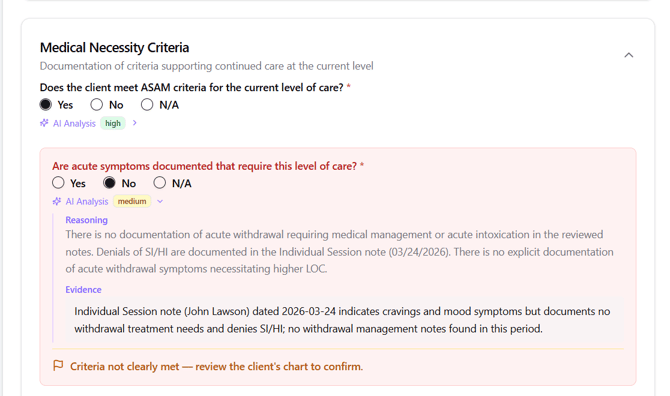
- Click the AI Prefill button. This scans the client's chart and answers the form's questions automatically, the same way AI Chart Audit works.
- Once AI Prefill finishes, you'll see:
- A summary of all the AI's answers
- Any warnings about the UR
- An overall score for the form
- The full AI analysis for each question
- Click into the AI analysis to review how each answer was generated.
- Go through each answer and verify it's accurate, editing as needed.
- Add any additional notes at the bottom of the form if needed.
Completing and Downloading a UR
- Select a recommendation at the top of the form:
- Continue current level of care
- Step up level of care
- Step down level of care
- Discharge
- Additional review needed
- Click Submit Form. No sign-off is required.
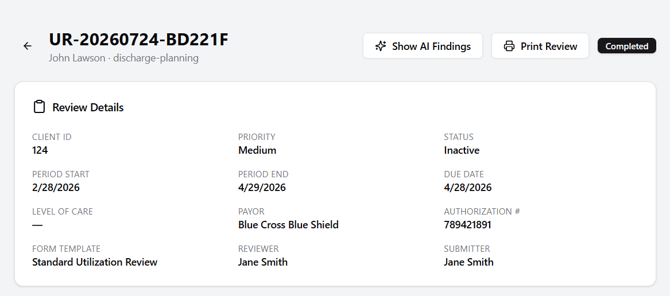
- Click the Print Review at the top of the finished form, download, and send to the insurance company.
Auto-Pull for Upcoming URs
InCheck can automatically create UR forms ahead of time based on authorization due dates:
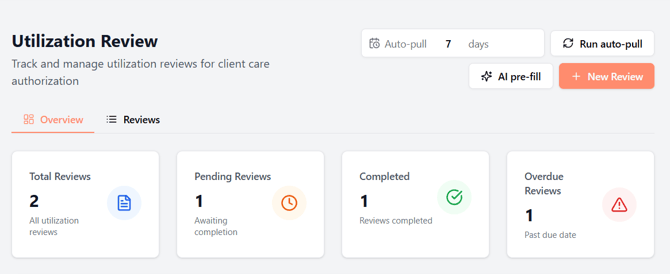
- The auto-pull window is configurable (currently set to 7 days).
- On each pull, the system checks all client authorizations expiring within that window and automatically creates UR forms for them under Reviews.
- AI Prefill does not run automatically on these auto-created forms. This is intentional, since AI Prefill should be run as close to submission as possible so it reflects the most current chart information.
- Reviewers will go through the list, run AI Prefill when they're ready to complete each one, verify the answers, and submit.
Assigning and Reassigning Reviewers
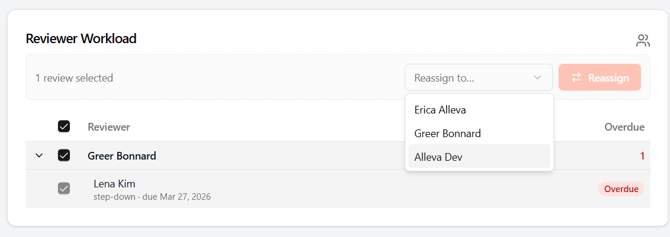
- URs can be assigned to a specific InCheck user as the reviewer.
- To reassign a review, select the review, use the Reassign To dropdown, select a different user, and click Reassign.
Overview Tab and Reports
The Overview tab provides reporting on UR activity, including:
- Total reviews, pending reviews, completed reviews, and overdue reviews (based on due date)
- Trends over time showing how many URs have been completed
- Reviews by type and priority, both pending and completed
- Reviewer workload, showing all users with URs assigned to them and how many each has open
- Overdue reviews, showing all reviews past their due date regardless of assignee
- Upcoming reviews, showing reviews assigned specifically to the logged-in user
Key Takeaways:
- A UR is a customizable form used to request continued or updated authorization from an insurance company.
- AI Prefill scans the client's chart and fills out the form, but all answers should be verified before submitting.
- Auto-pull creates UR forms ahead of due dates, but AI Prefill must be run manually at the time of completion.
- Reviews can be assigned, reassigned, and tracked through the Overview tab's reporting.