![Untitled design (2)-3.png]](https://support.helloalleva.com/hs-fs/hubfs/Untitled%20design%20(2)-3.png?height=50&name=Untitled%20design%20(2)-3.png)
How incident types sync
Incident types you manage in InCheck sync to the EMR automatically, including renames and deactivations. A full resync also runs on a schedule.
In each incident form template, select the incident types the form applies to, then turn on Make Visible in Alleva. The form then appears on the incident reporting page in the EMR. When staff report an incident and select one of those types, the form opens for them to complete. Once the incident is signed, it is sent back to InCheck with the form answers.
Make an incident form visible in Alleva
- In the form builder, editan Incident form template.
- Link the template to one or more incident types. For example, one incident form can cover Fall, Near Miss, and Elopement. Do this by selecting the incident types in the Builder tab of the form editor.
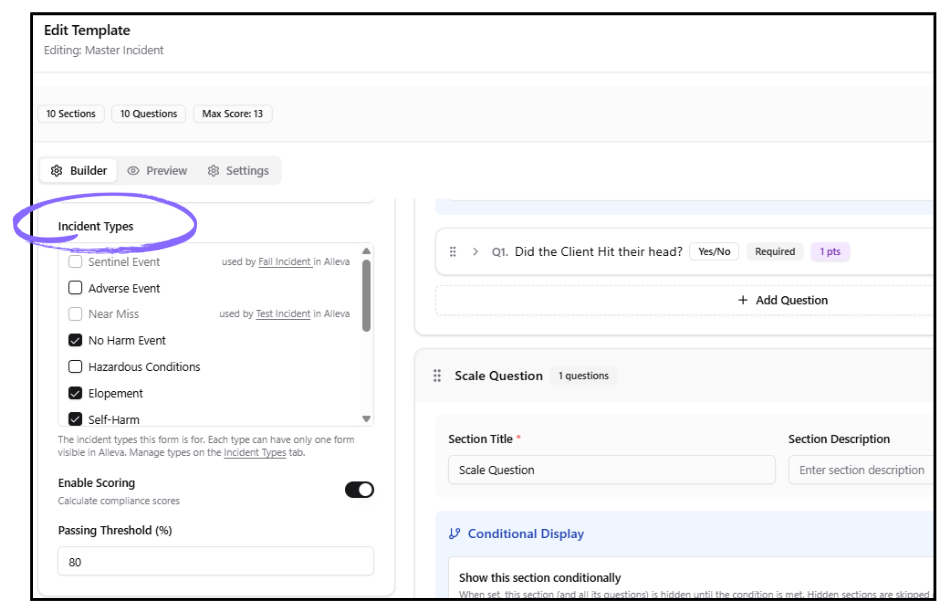
- Open the template’s Settings tab.
- Turn on Make Visible in Alleva.
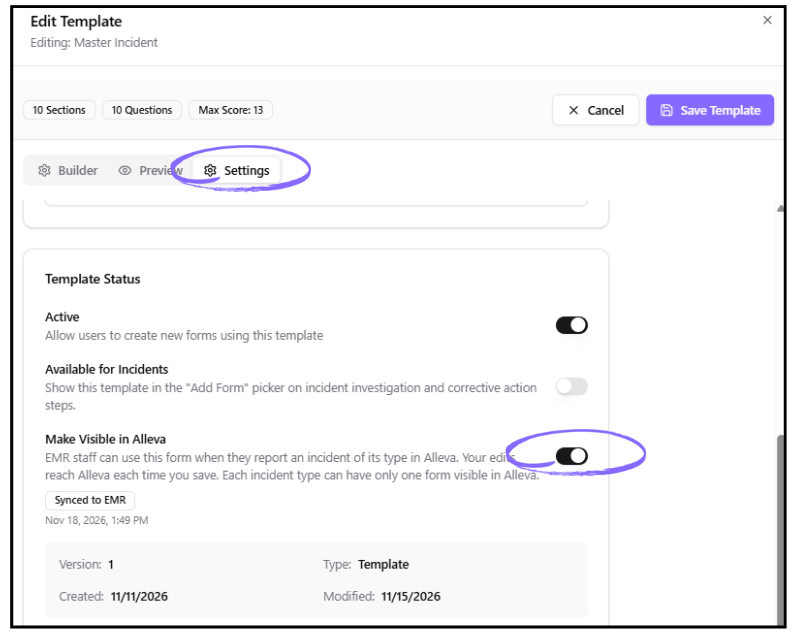
- Check the status line:
- Synced to EMR displays the time the template synced.
- If the status is Not synced, click Retry.
Later edits to the form are sent to the EMR automatically.
NOTE: Only top-level incident types are used in the EMR. Sub-types are not included.
Things to know
- Each incident type can use only one visible form. An incident type can belong to only one form with Make Visible in Alleva turned on. InCheck labels types already in use and names the form each belongs to.
- Template type and permissions matter. Make Visible in Alleva is available only for Incident templates and only to users with the required permission.
- Check the form assigned to each type. Go to Settings > Incident Types in InCheck to see which form Alleva uses for each incident type.
- Removing visibility removes the form from the EMR. Turning off Make Visible in Alleva, deactivating the template, or deleting the template removes the form from the EMR.
- Received answers cannot be edited. After form answers arrive in InCheck, they cannot be edited there.
- Signed incidents arrive about every 5 minutes. They include the incident type, facility, client and staff details, reporter, and form answers. The incident type’s workflow and notifications start automatically.
- Incidents are not duplicated. The same incident is never created twice. The existing Sync from EMR skips incidents that have already arrived through this process.