![Untitled design (2)-3.png]](https://support.helloalleva.com/hs-fs/hubfs/Untitled%20design%20(2)-3.png?height=50&name=Untitled%20design%20(2)-3.png)
Where to Find It
- Go to Settings.
- Select Form Builder.
- Edit a Chart Audit or Utilization Review form template.
- Click a question to open its AI Context section.
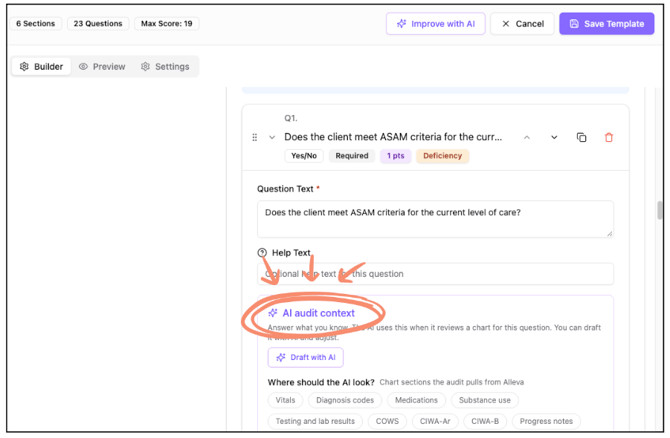
AI Context Fields
Each question includes the following fields. Fill in the ones that apply to the question.
-
Where should the AI look?
Select the chart section or sections the AI should review, such as Admission Screening or Treatment Plan.
-
What counts as compliant?
Describe what the AI should find for the question to be marked compliant. For example: “Consent is signed and dated by the client.”
-
Timeframe
Enter the timeframe the requirement must be met within. For example: “Within 72 hours of admission.” If the requirement isn’t time-based, select Not time-based.
-
Who must sign
List who needs to sign. For example: client and admitting staff.
-
When to answer N/A
Describe situations where the question doesn’t apply.
-
Standard reference (optional)
Enter the policy or accreditation standard the question is based on.
-
Extra instructions
Add anything else the AI should know when answering the question.
💡 Tip: Write context the way you’d explain the requirement to a new auditor. Specific, measurable details like who, what, and when lead to the most accurate answers.
Preview What the AI Will Read
As you fill in the fields, the Preview shows exactly what the AI will read for that question. Use it to check that your context is complete and clear before saving.
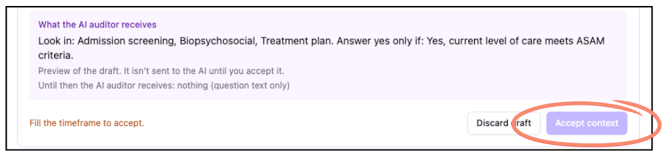
Draft Context with AI
If you’d like a starting point, the AI can fill in the fields for you.
- Open a question in your template.
- Click Draft with AI.
- Review the drafted fields. Drafts appear in purple.
- Edit anything that doesn’t match your policy.
- Click Accept to use the draft.
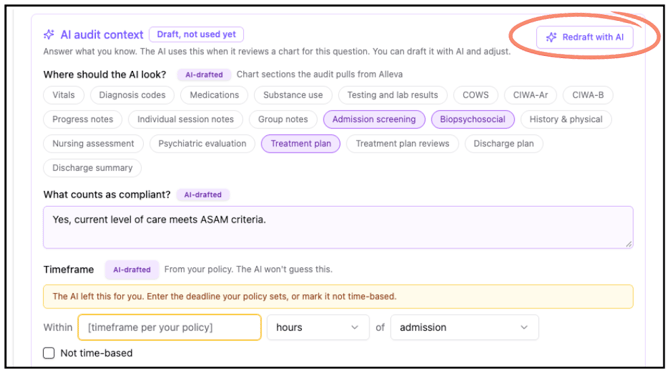
⚠️ Important: Drafted context is not used until you click Accept. Always review drafts against your own policies before accepting.
A few things to know about drafts:
- If the question doesn’t state a timeframe, the draft will ask you to enter one from your policy.
- The AI never fills in the Standard reference field. Add this yourself if needed.
Existing Templates
Any context you entered before this update is kept. You’ll find it under Extra instructions, and it continues to work as before. You can move details into the new fields at any time for more accurate results.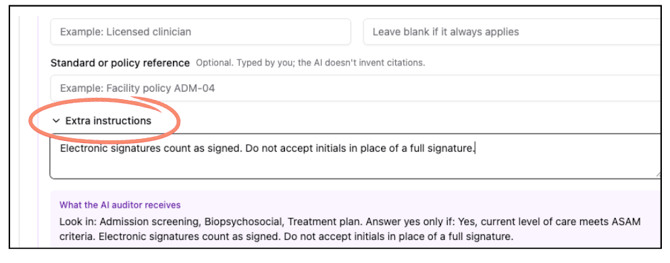
Templates Created with Generate with AI
New templates created with Generate with AI include draft context on each question. Review and accept the drafts on each question before using the template.
Privacy
🔒 Privacy: When you use Draft with AI, only template content is sent to the AI. Patient information is never sent.
Frequently Asked Questions
-
Do I have to fill in every field?
No. Fill in the fields that apply to the question. More complete context generally leads to more accurate answers.
-
Will the AI use a draft I haven’t accepted?
No. Drafts in purple are not used until you click Accept.
-
What happened to the context I already wrote?
It’s saved under Extra instructions and still works.
-
Why didn’t Draft with AI fill in the Standard reference?
The AI never fills in this field, since it should come directly from your organization’s policies or accreditation standards.