![Untitled design (2)-3.png]](https://support.helloalleva.com/hs-fs/hubfs/Untitled%20design%20(2)-3.png?height=50&name=Untitled%20design%20(2)-3.png)
Advanced Claim Settings let you fine‑tune how claims are created and sent so they better match the unique requirements of different insurance companies, states, and lines of service. Instead of relying on a one‑size‑fits‑all claim builder, you can define flexible, rule‑based settings that drive cleaner, faster reimbursement.
What Are Advanced Claim Settings?
Advanced Claim Settings are configurable rules that control how a claim is built and formatted. Depending on your configuration, they can determine things like:
-
How billing codes (e.g., CPT/HCPCS, modifiers) are applied
-
Which payer/plan combinations use which settings
-
What additional codes to insert based on the service rendered
You can create multiple Advanced Claim Settings and assign them to different payers or scenarios, so your claims reflect the nuances of each insurance company’s requirements.
Why Advanced Claim Settings Make Your Claims Better:
Advanced Claim Settings add an extra level of control over existing billing rules with granular, rule‑based configuration.
How to Create a New Advanced Claim Setting (Step‑by‑Step)
- Within Alleva Billing, go to Settings, Insurance Companies.
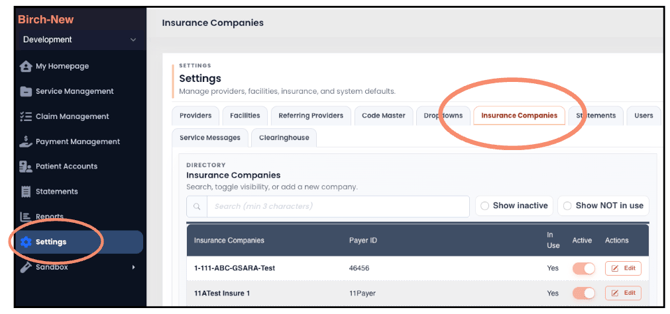
- Click to edit the insurance company that this setting is for.
- Go to Advanced Claim Settings and click Add New.
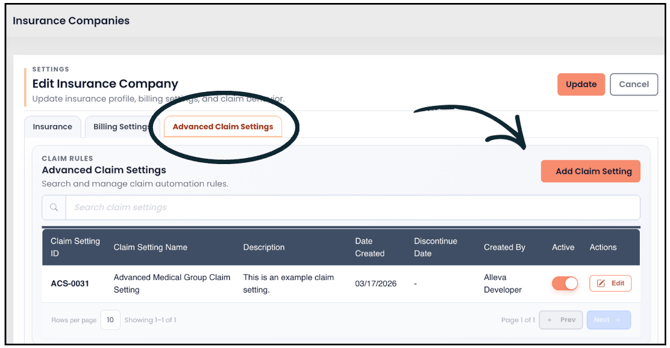
- Enter a clear name, description, effective date, and select claim type (facility or professional).
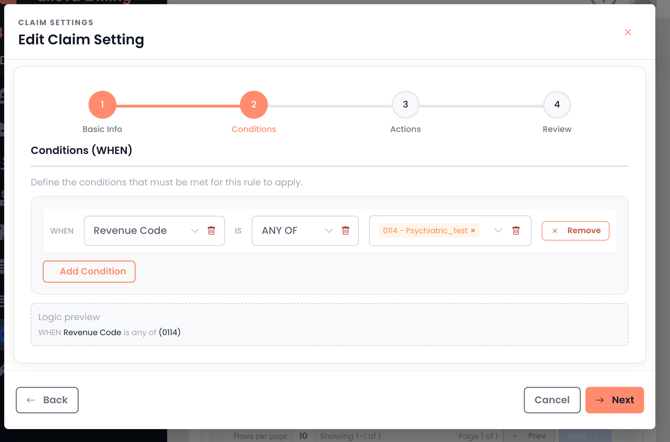
- Enter Conditions (the "IF" portion of the "IF/THEN" statement). This includes procedure and revenue codes. For example, "IF the procedure code 12345" is present..."
**Note: You can choose “Equal to” or “Any of.”
-
Equal to requires the service to include all the listed codes.
-
Any of applies the setting if any one of the listed codes is present.
-
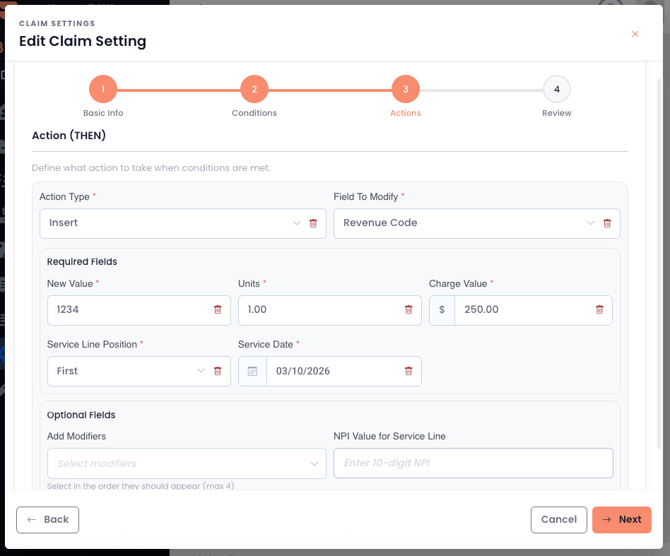
- Enter the Actions (the "THEN" portion of the "IF/THEN statement). Enter the following:
-
Field to modify (Revenue code or Procedure code).
-
New value to insert into this field.
-
Units
-
Charge Value
-
Service Line Position (first or last)
-
Service date
-
OPTIONAL: Additional modifiers
-
OPTIONAL: NPI Value for Service Line
-
-
Review all details and click Save. Change Status to Active if needed.
-
Test by generating claims for the configured payer and services, then verify codes, modifiers, units, grouping, and provider info. Edit and retest as needed.